|
At the first usage you will be asked if you allow the BridgeTab to check your location. You should accept that.
THE START SCREEN
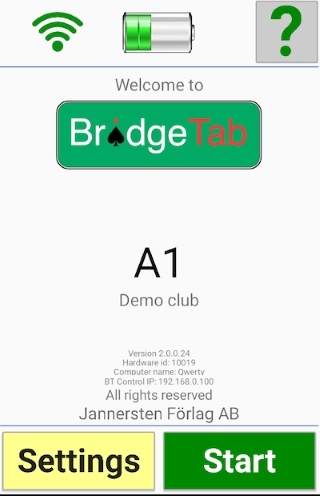
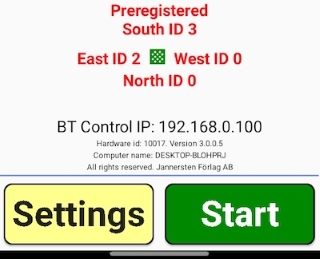
The start screen consists of three parts: header, footer and mid section. The start screen should look as shown to the right.
Call the TD if a Resume button appears instead of the Start button. TD notice: Go to the TD menu and force start of NEW GAME, if you have set up a new game on the computer.
Header
In the header you find the WiFi status, battery indicator and a question button leading to pages like this one (or to the TD menu if you hold the button pressed). These three elements are present on all screens. The WiFi status and battery indicator are sometimes moved to the footer, but the ? button is always found in the upper right corner.
Mid section
In the middle section of the screen you find the table no. (if preset), owner and detailed network info.
Footer
The Settings button leads to a screen with some basic settings. The Start button is explained below.
THE START BUTTON
See a separate page if you have hard-coded the IP. In the following we assume that the IP isn’t hard-coded.
No Start button
You will come nowhere (except Settings) without communication. You should study the WiFi status (the icon) and possibly also the network info (in the mid section) if the start button does not appear when the TD tells you to start play.
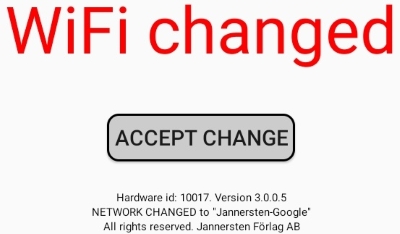
If it says WiFi changed, as shown to the right, you will need to accept the change (click the button) to make the START button appear.
Start button appears
The green START button appears when contact with the control software has been established. That does not mean that you can start playing.
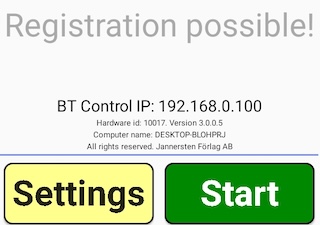
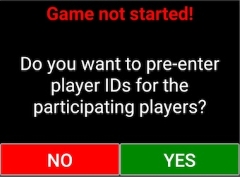
If the Wifi icon is grey and it says “Registration possible”, you can register the start positions. The button will lead to the Game not started message shown to the right if the game has not been started.
Pre-entered IDs will appear in the mid section of the screen. If the IDs are correct, you should await the WiFi icon to become green before clicking the START button. (Otherwise you will have to pre-register anew.) You can change your player ID entry when the game has been started, were you to change start position in the last minute.
UNSENT RESULTS AT START
It can also happen that a warning appears telling that the unit contains unsent Results. In this case you should call the TD before clicking Yes.
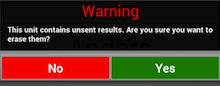
TD note: The tablets contains results from the previous session. You can extract these (unsent) results via the TD menu’s Results option, if needed. The Yes alternative will delete them.
|