|
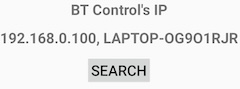
Everything should be well if the control software’s IP appears as shown to the right. If you click the SEARCH and the same IP and computer name comes up again the tablet no doubt has contact.
BT will in most cases tell what is wrong if the contact with the control software cannot be established.
WiFI n/a
It will not help to Search for IP so long as the BT has no connection with any network.
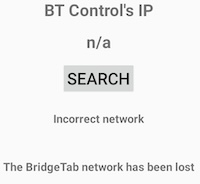
Incorrect network
Select the same network (in the tablet’s Settings) as was used at the start before doing anything else.
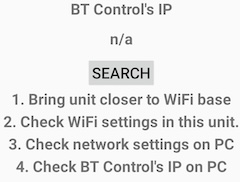
BT Admin’s IP n/a
The 3 points in the last case should be self-explanatory.
HARD-CODED IP
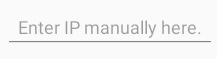
You can force the BT to connect to the control software’s IP (shown in the header of the control software’s main interface) if Search does not detect the IP. The IP is entered in the field “Enter IP manually here”.
Removing hard-coded IP
It might be necessary to remove the hard-coded IP if the blue WiFi icon shows good signal strength but it is impossible to log on. Click the Search button and the hard-coded IP should be reset.
If you cannot get rid of the hard-coded IP by Searching, you can start Dummy mode (via the Settings button on the Start screen) and then exit Dummy mode. Note that this will revert all settings (not only IP) to factory default.
PUBLIC NETWORKS
The network can be very sophisticated in e.g. large hotels and community buildings where subnets and firewalls can prevent the BTs from connecting. Our advice is that you avoid such problems by buying a cheap WiFi router and setting up your own, dedicated BridgeTab network.
|