|
THE TD-CALL APP
You will need to install the TDCall app once you have purchased a TD-call licence. A shortcut to TDcall will appear on the Desktop after installation.
CONNECTING TDCall APP
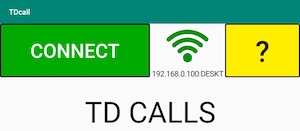
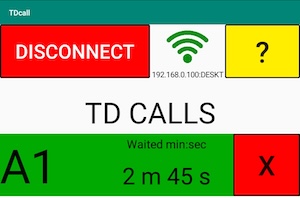
The WiFi icon uses the same colour pattern as the players’ BridgeTabs use. And the IP should also be the same.
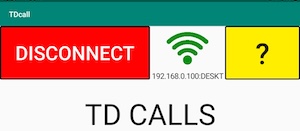
The CONNECT button will be green when it is possible to connect. You can click DISCONNECT if you for some reason want to disable TDcalls.
APP SETTINGS
Holding the yellow ? button pressed for a while opens the settings screen.
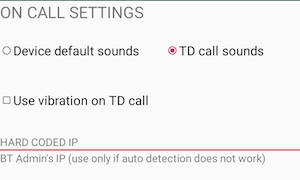
Calls from the players will by default be announced by a special sound signal. You can change the signal to your phone/tablet´s standard, if you so wish. You can also add vibration.
You will need to switch off your device’s sound if you want to mute TDCall.
SETTINGS ON PC
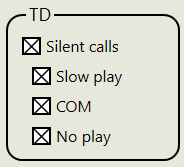
The TD-call settings are found in the Additional Settings dialog (see illustration to the right ).
Silent calls
The players can call the TD to the table when this box is ticked.
Slow play
The TD will be alerted when one table has not reported a board from the previous round when a result from the current round is received from another table.
COM
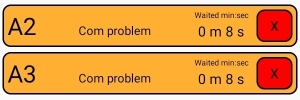
The TD will be alerted when the first result from the current round is received, and there are results missing from the previous round from other tables. Note that it in the example shown to the right can be that that both table A2 and A3 are late.
No play
The TD will be alerted when a table skips a board that they should play.
ATTENDING CALLS
The recommendation is to close attended calls by clicking the X-button.

|