|
The dialogs shown here might differ from what you see on your tablets, but the principle is the same regardless of brand and model.
BT AS HOME
You should prevent that the players can close the BridgeTab (BT) application and open other apps during the game.
You are therefore advised to enable BridgeTab as home in the following way in the TD menu.
1. Network
i. Connect to the SAME network as BridgeTab Control uses.
ii. Make sure that other networks than the desired are disabled. That is to say, tell the tablet to “forget” all other networks and enable Flight mode while you are at it.
iii. Select Always keep Wi-Fi on during sleep in Settings/WiFi/Advanced.
2. Close other apps
Close everything else [except the BridgeTab app] that is open.
3. BridgeTabs forever
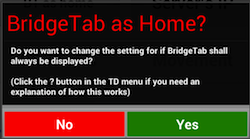
Say “Yes” to the BridgeTab as home? question to convert the tablet to a dedicated BridgeTab.
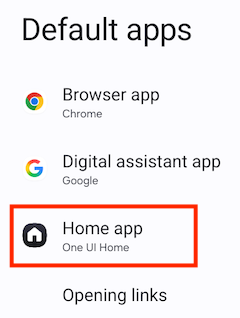
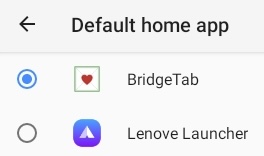
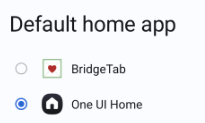
Click the Home icon on the Default apps screen, if it appears. Then select BridgeTab as your Default home app (see illustration to the right).
EXIT BT AS HOME
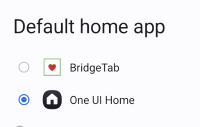
You can go back to the Default home app dialog and deselect BridgeTab if you need to get out of BridgeTab mode; i.e. select the alternative with the Home icon, see the two last examples to the right.
UPDATE ALERTS
We suggest that you prevent update alerts during the game by declining these options in Google’s (or Amazon’s) Play Store. c.f. the memo Prevent auto updates.
LABEL
You should put labels on the dedicated BridgeTabs to make clear that these tablets are for bridge and nothing else.

A template for printed labels (stickers) can be downloaded from here.

|